Installing Arrangement Microservice in Azure
This section helps you to install the Arrangement Microservice in Azure.
Procedure:
- Copy the generated zip file (from target folder) in the installation directory.
- Extract the zip file.
- In command prompt, navigate to the installation directory. Ensure that the folder name inside target/azure-functions is same as functionApp name you have provided in the script.
- Modify the resourcegroup, location, database details and so on in the install.sh or install.bat script specific to the installation. Ensure any property name is carefully changed, if it is used in multiple areas across the script, by finding and replacing the values.
- Execute install.sh or install.bat.
Once the installation is done the functions are created in Azure.
- Login to Azure portal.
- Check if the resourcegroup is properly created.
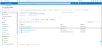
This script expects an event hub connection for both t24(des) and account aggregation. In case of account aggregation, ensure you run the account aggregation script first and provide the event hub details here. In case of t24(des), modify the event hub connection details for t24AmsApp in the script. In case the event hub is not there, then leave it as it is, if you wish only to use the APIs. You might see some errors related to JSON decoding and can be safely ignored as the remaining part of the script will continue to be executed.

- Check if the functionsapps is properly created.


The master key token can also be retrieved from Azure portal, navigating as highlighted:

The masterKeyToken value can be used to Invoke Azure API functions from API Client with code(query param) or x-functions-key(header).
The command should be added in Azure Install.bat file.
You should set the environmental variables:
RESOURCE_GROUP_NAME
APP_NAME
subscriptionid rem command to get the subscription Id call az account list | python -c "import json,sys;obj=json.load(sys.stdin); print(obj[0]['id'])" >> out.txt SET /p subscriptionid=< out.txt
masterKeyToken rem command to get the master API token. call az rest --method post --uri "/subscriptions/%subscriptionid%/resourceGroups/%RESOURCE_GROUP_NAME%/providers/Microsoft.Web/sites/%APP_NAME%/host/default/listKeys?api-version=2018-11-01" | python -c "import json,sys;obj=json.load(sys.stdin); print(obj['masterKey'])" >> out.txt SET /p masterKeyToken=< out.txt
The query parameter code as key and masterKeyToken fetched as value can be used to invoke the azure functions or the Header x-functions-key as key and masterKeyToken fetched as value can be used to invoke the azure functions
In this topic
