Working with Tools
This section shows you how to debug WAS through Eclipse, how to use IBM Support Assistant Workbench and explains the JMX connection setup.
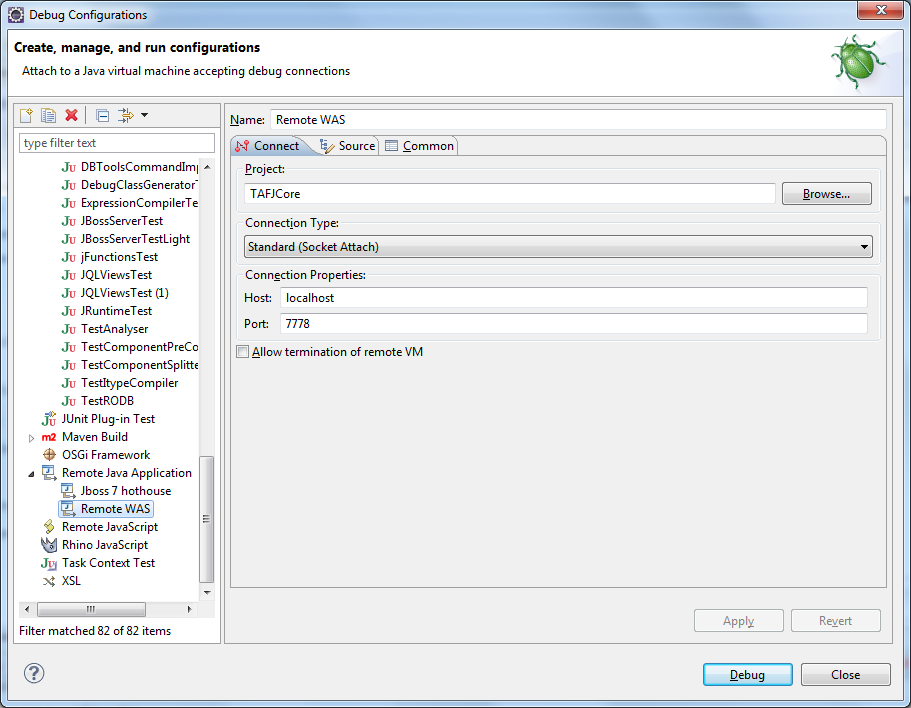
Debugging WAS through Remote Eclipse
Procedure
- Use the following as JVM startup parameters:
- Define an Eclipse Remote Java Application configuration.
-Xdebug -Xnoagent -Djava.compiler=NONE -Xrunjdwp:transport=dt_socket,server=y,suspend=n,address=7778
Using Health Center
Procedure
- Download IBM Support Assistant Workbench.
- Go to Update > Find New > Tools Add On menu. Click JVM Based Tools and select Health Center.
- Start Health Center through the following screen on WebSphere by adding the –Xhealthcenter option to the Generic JVM arguments.

Setting up JMX Connection on zOS
Procedure
- Add the following properties in JVM:
-Dtafj.home=/temenos/tafj -Xtrace:none -Dcom.ibm.xml.xlxp.jaxb.opti.level=3 -Xgcpolicy:gencon -Xnoclassgc -Xlp1M -Djavax.management.builder.initial= -Dcom.sun.management.jmxremote -Djava.rmi.server.hostname=10.3.42.3 -Xdump:java:events=throw,filter=java/lang/NullPointerException[jVarImpl.verifyFileDescriptor]
- Add the following properties in management.properties (common settings for all JVMs):
com.sun.management.jmxremote.port=9999
com.sun.management.jmxremote.authenticate=false
com.sun.management.jmxremote.ssl=false
In this topic
